Right, let's get your Outlook and Google calendars talking to each other. The quickest, totally free way to do this is by publishing your Outlook calendar and subscribing to it from Google. Think of it as a one-way mirror – Google can see your Outlook events, but you can't edit them from there.
For a proper, two-way sync where changes you make in one calendar instantly show up in the other, you'll need a dedicated third-party tool. This is the way to go for a truly seamless setup.
Why Syncing Your Calendars Is No Longer Optional
Trying to keep separate work and personal calendars in your head is a fast track to chaos. We’ve all been there. Maybe you’re a freelancer juggling client meetings in a corporate Outlook account while your family life, school runs, and doctor’s appointments live in Google Calendar.
Without a single, unified view, it’s just a matter of time before you accidentally book a client call right over your kid's dentist appointment. Constantly switching between apps isn't just a hassle; it adds a layer of stress you just don't need and makes double-booking almost inevitable.
When you finally sync your calendars, you create one source of truth for your time. It’s a simple change, but it removes the mental gymnastics of cross-checking schedules and lets you say "yes" or "no" to things with genuine confidence.
The Real Benefits of a Unified Calendar
Getting your calendars in sync brings some immediate, practical wins that give you back control.
- No More Double-Bookings: When your work calendar is aware of your personal life (and vice-versa), you see your actual availability at a glance. Simple as that.
- Look More Professional: You can respond to meeting requests instantly and accurately. No more, "Let me just check my other calendar and get back to you."
- Less Mental Clutter: Stop wasting brain power trying to remember your schedule. That energy is much better spent on the work that actually matters, both in the office and at home.
The real goal here isn't just about seeing everything in one place. It's about building a system that works for you, automatically blocking out time across every platform to protect your focus and your personal life.
So, how do we get this done? The methods really boil down to two types. You've got one-way sharing, which is a simple, view-only approach perfect for a quick overview. Then there's the robust two-way sync, which lets you edit events on either calendar and see the changes reflected everywhere instantly.
If you're constantly juggling appointments and trying to avoid conflicts, it's crucial to find efficient ways to manage your time. For a comprehensive guide on how to sync your Outlook and Google calendars seamlessly, enabling you to unify events across platforms, this article offers actionable steps and troubleshooting tips.
Choosing the Right Calendar Sync Method for You
So, how should you sync your calendars? The best approach really boils down to one simple question: what do you actually need to do?
Are you just looking to glance at your work schedule while planning personal appointments? Or do you need to create, edit, and manage events from both calendars, with every change showing up everywhere, instantly? Your answer will point you down one of two very different paths.
Deciding Between One-Way and Two-Way Syncing
The most basic option is the free, built-in method called an Internet Calendar Subscription (ICS). This creates a simple one-way, read-only feed. For instance, you could see your Google Calendar events inside your Outlook app, but you wouldn't be able to edit or delete them from there. It’s a straightforward way to get a bird's-eye view of all your commitments in one place.
But honestly, this method has some serious drawbacks. The updates are far from real-time. You could be waiting several hours for a change to appear, which is a massive risk if you have a dynamic schedule. This lag is exactly why most professionals find the ICS method just doesn't cut it for active calendar management.
The alternative is to use a third-party tool that enables a true two-way sync. This approach essentially turns your Outlook and Google calendars into perfect mirrors of each other. Create an event in Outlook, and it pops up in Google almost immediately. Make a change in Google, and it's reflected back in Outlook in moments.
This kind of live connection is non-negotiable for anyone actively juggling both calendars. A recent survey of UK business users really drives this point home, finding 63% prefer Google Calendar for its collaborative features, while 55% rely on Outlook for its deep enterprise integration. With that much overlap, it’s clear why so many people need a robust solution that goes way beyond what a simple one-way feed can offer. You can find more detail on these user preferences in this deep dive on sync technology trends.
The main takeaway is simple: if you need to edit events from either calendar, a two-way sync is the only way to go.
For production teams and creative studios, a two-way sync is more than a convenience—it's mission-critical. When you're booking suites, artists, or client review sessions, real-time accuracy is what prevents catastrophic double-bookings and keeps complex projects moving forward without constant manual checks.
To help you decide, here’s a quick breakdown of the two approaches.
Comparison of Calendar Sync Methods
| Feature | One-Way Sync (ICS) | Two-Way Sync (Third-Party Tools) |
|---|---|---|
| Directionality | Read-only; one direction only | Read/Write; bi-directional |
| Update Speed | Slow; can take several hours | Near real-time; updates in minutes |
| Editing Capability | None from the subscribed calendar | Full create, edit, and delete from either calendar |
| Setup Complexity | Simple, built into calendar apps | Requires an external service, but usually quick to set up |
| Cost | Free | Typically requires a paid subscription |
| Best For | Viewing a static, personal calendar | Actively managing professional and personal schedules |
Ultimately, the choice comes down to your workflow.
- One-Way Sync (ICS) is fine if all you need is a passive, view-only snapshot of a calendar that doesn't change much. It’s free and easy, but it's also slow and completely inflexible.
- Two-Way Sync (Third-Party) is essential for anyone who needs to actively manage their time across both platforms. It delivers the real-time updates and full editing power that professional workflows demand.
How to Set Up a One-Way Sync from Google to Outlook
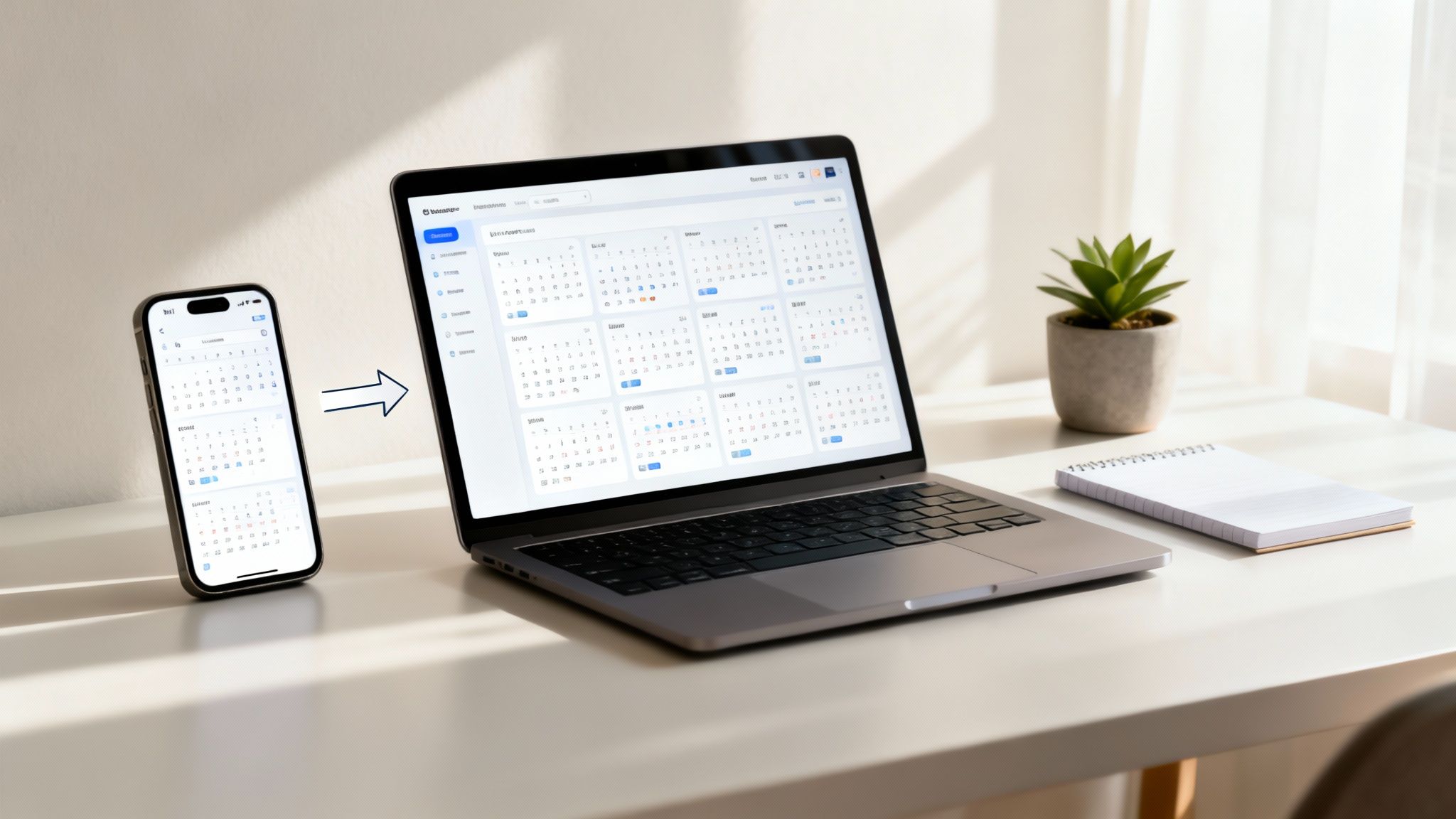
If you just need a quick, visual overview of your Google appointments inside Outlook, the one-way Internet Calendar Subscription (ICS) is your most direct route. It’s a free, built-in feature that essentially creates a read-only mirror of your Google Calendar right inside Outlook. Think of it as the simplest first step to get your calendars talking.
This approach is perfect when you have a primary "doing" calendar (let's say, Outlook for work) and another for reference. For example, your personal Google Calendar has family birthdays and appointments. You need to see these when scheduling work meetings in Outlook to avoid conflicts, but you don't actually need to edit them from your work account.
But it’s important to be clear about the limitations upfront. This is a view-only connection. You can't create, edit, or delete Google Calendar events from inside Outlook using this method. Also, updates aren't instant. Sometimes they can take a few hours to show up, so it's not the best fit for fast-moving, dynamic schedules.
Finding Your Google Calendar ICS Link
The key to this whole process is a unique web address, an ICS link, that Google generates for your calendar. This special link allows other apps, like Outlook, to subscribe and pull in your event data.
First, you'll want to open Google Calendar in your web browser. Look at the left-hand panel under "My calendars" and find the one you want to share. Hover over its name, click the three vertical dots that appear, and choose Settings and sharing.
Once you're in the settings, scroll down until you see the "Integrate calendar" section. Look for a box labelled Secret address in iCal format. That's the link you need. Be careful not to use the "Public address," as that one makes your calendar visible to anyone who stumbles upon the link.
Important Note: Treat this "Secret address" like a password. Anyone who has it can see all the details of your events. If you ever suspect it's been compromised, just come back to this settings page and hit the "Reset" button to generate a new, secure link.
Adding the Google Calendar to Outlook
With your secret ICS link copied, the final part is adding it to Outlook. The steps are a little different depending on whether you're using Outlook on the web or the desktop app, but the core idea is the same.
For Outlook on the Web (Microsoft 365):
- Start by navigating to your Calendar view.
- In the left sidebar, click Add calendar.
- A new window will pop up; choose Subscribe from web.
- Paste your secret ICS link into the URL field.
- Give the calendar a name you'll recognise (like "Personal Google Cal"), pick a colour, and click Import.
For the Outlook Desktop App (Windows/Mac):
- Head to the "File" menu and select Account Settings, then choose "Account Settings" again from the dropdown list.
- Click over to the Internet Calendars tab.
- Select New... and paste in your copied ICS link.
- Click Add. Outlook will then ask you to confirm everything, which is where you can give the calendar a custom name.
After a few moments, your Google Calendar events should pop up in Outlook, giving you that unified view you were after. For a deeper dive into different ways to manage your calendars, you can learn more about sharing and exporting calendar data with our guide right here: https://freispace.com/share-export.
Using Third-Party Tools for Automated Two-Way Syncing
While the one-way calendar subscription gives you a basic peek into another schedule, it’s just not enough for professionals who need an active, reliable system. You simply can’t afford missed meetings or double-booked rooms. When the stakes are high, the native limitations become a major liability.
This is where third-party sync tools come in. They’re built to bridge the gap between Microsoft and Google's ecosystems, turning a clunky, read-only feed into a seamless, automated two-way street. Instead of a passive subscription that might only refresh every few hours, these services create a constant connection that actively watches both calendars for changes. The result? A perfectly mirrored view of your schedule, no matter which app you open.
What Makes a Good Sync Tool Essential
The biggest win here is genuine two-way sync. It means you can create a meeting in Outlook, and it pops up in Google almost instantly. Or, adjust an appointment on your phone with the Google Calendar app, and that change gets pushed back to your Outlook calendar within minutes. It’s this constant, bi-directional flow that practically eliminates scheduling conflicts.
But beyond just real-time updates, the best solutions offer incredible control over how your information is shared. You get to decide exactly what data moves between platforms.
- Privacy Controls: You can choose to sync events just as "Busy" or "Tentative" without revealing sensitive meeting titles or who you're meeting with. This is ideal for sharing your work availability on a personal calendar without exposing confidential details.
- Selective Syncing: Many tools let you sync specific calendars instead of your entire account, stopping personal appointments from cluttering up your professional schedule.
- Field Mapping: You can often control which event details—like the location, description, and reminders—are carried over, ensuring everything looks consistent across both calendars.
You just don't get this level of customisation with the basic subscription method. The need for these robust solutions is undeniable, especially in today's hybrid work environments. A recent study of UK professionals found that with 64% of businesses on Microsoft 365 and 39% using Google Workspace, integration headaches are common. In fact, these issues have pushed 43% of UK IT professionals to adopt specialised software to properly sync Outlook calendar Google calendar setups. You can dive into the full findings about UK calendar integration trends on LeaveTrackApp.com.
In a post-production studio, this is non-negotiable. Think about a colourist’s schedule, managed in Outlook, needing to align perfectly with a freelance editor’s Google Calendar. A dedicated tool ensures that when a client review gets moved, both calendars update immediately. That simple action prevents a costly booking conflict for an expensive grading suite.
The Power of Automated Workflows
Ultimately, the goal is to have a "set-it-and-forget-it" system. Once you’ve configured a third-party tool, it just runs quietly in the background, keeping your schedules perfectly aligned without you having to lift a finger. It frees you from the constant, low-level anxiety of checking multiple calendars and lets you focus on your actual work.
For those who need even more tailored solutions, platforms like the Microsoft Power Platform for custom integrations can be used to build advanced calendar syncing workflows for specific business needs. This level of automation transforms your calendars from simple information displays into an active, intelligent scheduling assistant, making sure you always have a single source of truth for your time.
Of course. Here is the rewritten section, crafted to sound like an experienced human expert, following all your specified requirements.
Tackling Common Sync Problems and Best Practices
Even with the best tools, getting Outlook and Google Calendar to play nice can sometimes hit a snag. Whether you're dealing with a minor hiccup or a full-blown scheduling headache, most of these issues are surprisingly easy to sort out once you know what you’re looking for. Let's walk through a few common gremlins and the best practices to keep your calendars perfectly aligned for the long haul.
One of the most frequent complaints I hear, especially with the one-way ICS method, is that events just aren't updating. You’ve added a new meeting in your Google Calendar, but it's nowhere to be seen in Outlook, or it shows up hours later. This delay is an unfortunate, built-in limitation of the ICS subscription model itself; it can take anywhere from a few hours to a full day to refresh. The only real fix here is either a dose of patience or switching to a third-party tool that offers near-instant updates.
Another classic frustration is the sudden appearance of duplicate events. This almost always crops up when you’ve accidentally set up two different sync methods for the same calendars. Maybe you have an old ICS subscription still running in the background while your shiny new two-way sync tool is also doing its thing. The solution is dead simple: pick one method and completely remove the other.
Solving Permission and Privacy Errors
Permission errors can stop a sync dead in its tracks. If you get a notification that your sync has failed, the very first thing to do is re-authenticate both your Google and Microsoft accounts within your chosen sync tool. This usually clears up any token-based access problems right away.
Privacy settings are just as critical, especially when you're sharing calendars that contain sensitive details. When you’re setting things up, it’s wise to follow these practices:
- Use Placeholder Details: Configure your sync tool to show events from your work calendar on your personal one simply as "Busy." This blocks out the time without broadcasting confidential meeting titles or who you're meeting with.
- Create a Dedicated "Synced" Calendar: Instead of syncing your main work calendar directly to your personal one, create a new, separate calendar in Google and call it something like "Work Sync." Then, point your tool to sync all Outlook events there. This keeps your personal calendar uncluttered and gives you an extra layer of control.
A core principle for a reliable sync is to treat your data with care. It's good practice to regularly review what information is being shared and make sure it aligns with both company policy and your own comfort level. Understanding your obligations around data protection is absolutely key. For a deep dive, you can learn more about data safety and GDPR compliance on freispace.com.
Long-Term Maintenance for a Flawless Sync
Once you've got your system humming along smoothly, a little periodic maintenance goes a long way. I recommend setting a reminder every few months to quickly check your sync settings. Just confirm that the right calendars are still connected and that the privacy rules you established still fit your needs.
By proactively managing these common issues and adopting these simple best practices, you can ensure your effort to sync Outlook calendar Google calendar results in a dependable, long-term solution. It'll save you time and, more importantly, prevent a world of scheduling chaos.
Advanced Sync Strategies for Teams and Businesses
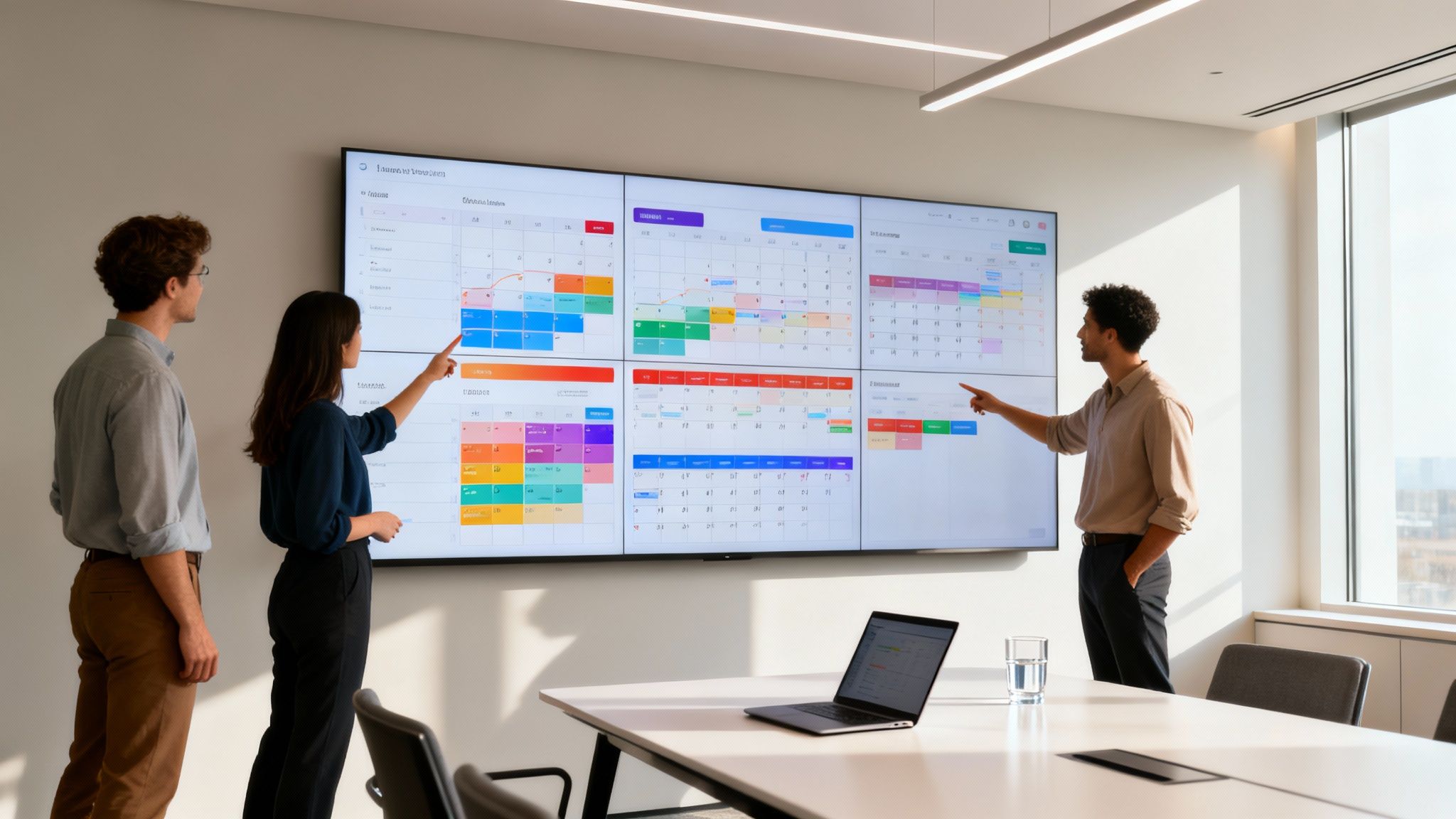
Moving beyond a single user's calendar, the real magic happens when you get an entire organisation in sync. For businesses, getting your sync Outlook calendar Google calendar setups right is less about personal convenience and more about pure operational efficiency. It’s how you give your whole team a transparent, unified view of project timelines and crucial resources.
Think about a post-production studio. The in-house editing suites and sound stages are booked via Outlook, but the freelance sound designers and colourists all live in their Google Calendars. Without a proper sync, you're looking at costly double-bookings and project delays. A solid sync strategy creates a single source of truth for everyone's schedule, no matter which platform they prefer.
Centralised Control and Security
When you’re managing this at scale, control over permissions and data privacy is absolutely critical. Enterprise-level sync tools hand the reins to administrators, letting them set clear, consistent rules for how calendar data flows across the company.
- Granular Permissions: You can set company-wide policies that dictate exactly what event details are shared. Need to protect client confidentiality? No problem. Mask sensitive meeting titles to show only "Busy."
- Compliance and Data Privacy: A robust solution gives your IT managers peace of mind by ensuring all synced data adheres to strict privacy regulations.
- Scalable Management: Streamline your onboarding and offboarding processes by adding or removing team members from sync configurations centrally, without ever needing to touch an individual's account.
This level of oversight is more important than ever. With remote and hybrid work now the norm, the need for integrated scheduling has absolutely exploded. In fact, projections show the global shared calendar market hitting around $5 billion by 2025, a trend heavily influenced by the mix of Microsoft and Google ecosystems in UK workplaces. You can dig into this growing market need for effective collaboration tools on marketreportanalytics.com.
A winning team sync strategy isn’t just about the tech—it’s about creating a single source of truth for your most valuable asset: time. When everyone’s availability is crystal clear, collaboration thrives and projects just flow better.
This is especially true when you're juggling expensive assets. For anyone in production, efficiently managing calendars is fundamental, and linking that to smart asset allocation is a game-changer. To get a deeper understanding of this, take a look at our guide on software for resource scheduling and see how it all connects to a smarter workflow.
Your Top Calendar Syncing Questions, Answered
Got a few nagging questions before you dive in? You're not alone. Here are the most common things people ask when trying to get their Outlook and Google calendars to play nicely together.
Can I Actually Sync My Calendars For Free?
Yes, but with a pretty big catch: it’s a one-way, view-only deal.
You can use the built-in Internet Calendar Subscription (ICS) feature in either Outlook or Google to see events from the other calendar. So, you could view your Outlook appointments inside your Google Calendar, for instance. But you can't edit or delete them from there. And honestly, the updates can be painfully slow.
For a proper, editable, two-way sync that feels almost instant, you’ll need to bring in a third-party tool.
How Often Does a One-Way Sync Actually Update?
This is the million-dollar question, and the frustrating answer is: you don't get to decide.
The update frequency for an ICS feed is entirely up to the service importing it (Google or Microsoft). It could be every few hours, or it could be just once a day. That lag is a massive headache and the number one reason why people who need their schedules to be accurate right now opt for a dedicated sync application instead.
Will syncing my calendars create duplicate events? It’s a definite risk. This usually happens if you try to get clever and set up multiple sync methods for the same accounts—like running an ICS subscription and a third-party tool at the same time. The best way to avoid a mess is to pick one method and stick with it. Ditch any others you might have set up.
At freispace, we get it. Seamless scheduling is the absolute backbone of an efficient post-production workflow. Our AI-native software is built to help studios manage their resources and projects without the chaos of manual calendar juggling. See how you can bring some calm to your studio's workflow at https://freispace.com.